Audio is a quick way to narrate, explain context, or capture pupil voice without needing to type. Each board can include an audio recording of up to 30 seconds.
This doesn’t have to be the teacher’s voice - it could be:
a learner explaining their learning
a short chat or interaction
a sound from an activity
music or an instrument
environmental sound linked to the work
Audio helps bring evidence to life.
How to add audio to a board
Create or edit a board
Go to the Audio tab
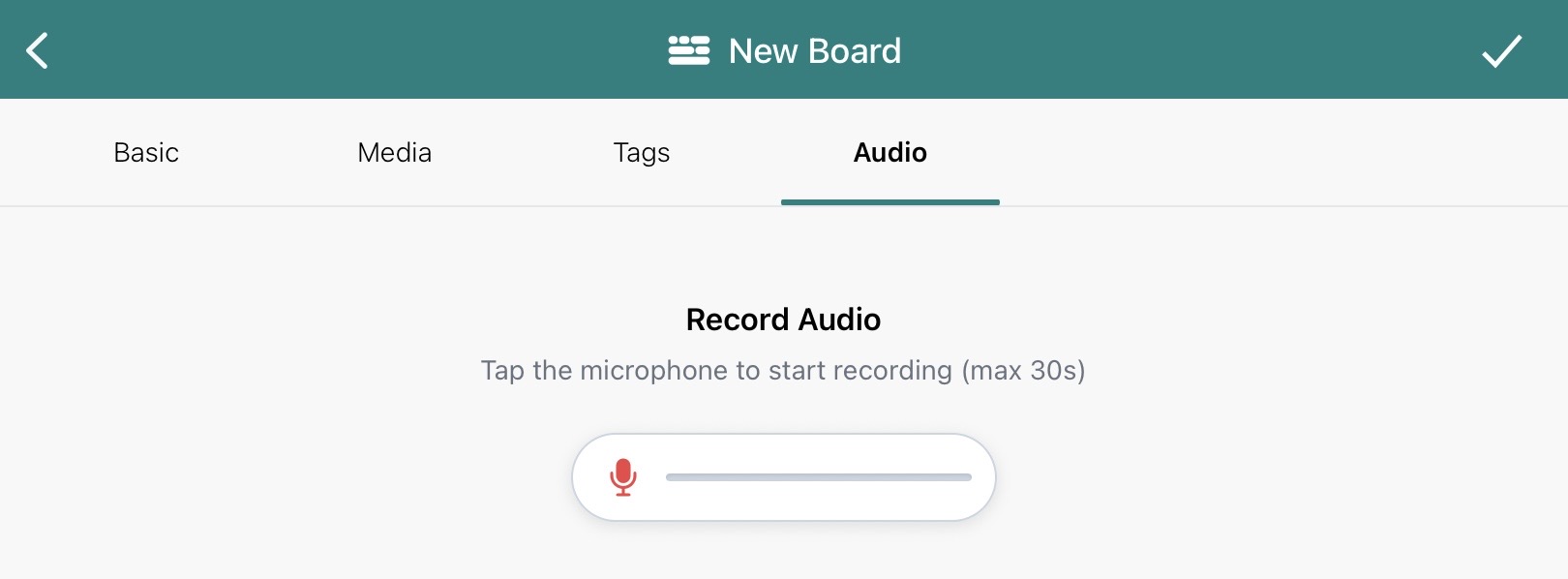
Tap the microphone to start recording (max 30 seconds)
Speak or capture the sound you want
Tap stop to finish
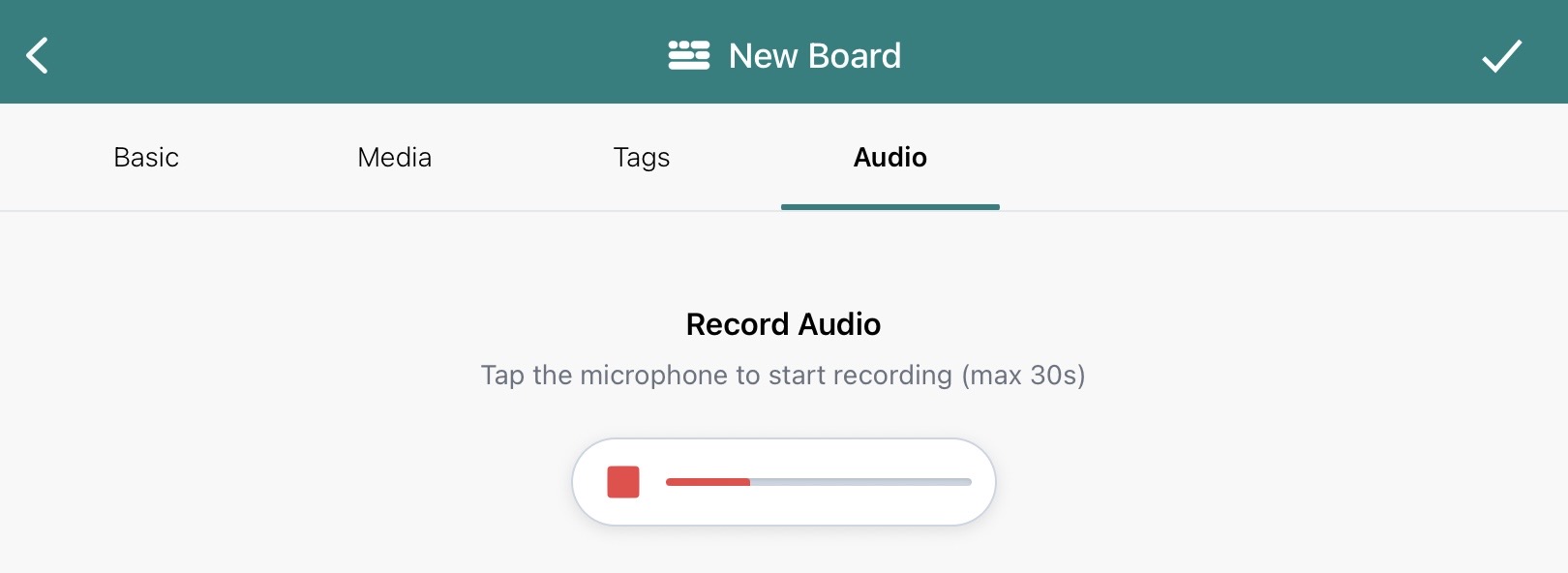
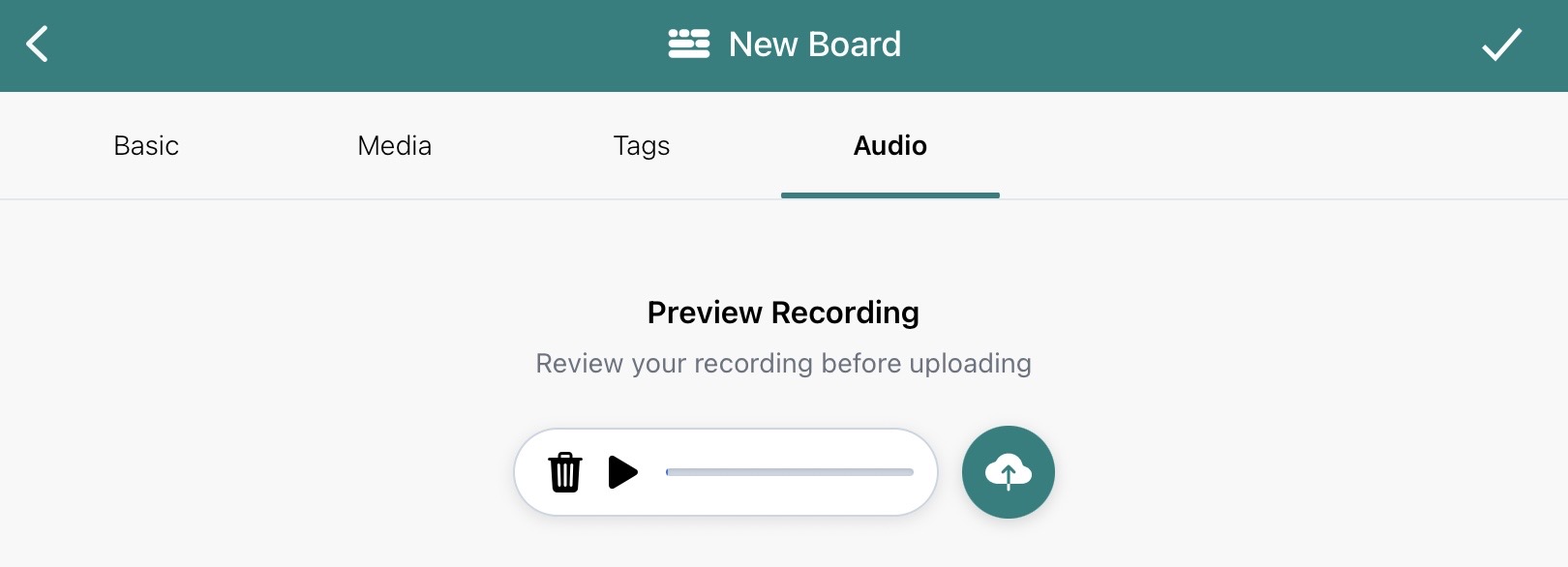
Your screen will move through three simple stages while you do this (shown below):
Record Audio – tap the microphone to begin
Recording in progress – timer shows your recording time
Preview Recording – play back, delete, or upload
Reviewing your recording
After recording you can:
play it back to listen
delete and re-record if needed
upload when you’re happy with it
Once uploaded, the audio is attached to the board alongside your media and tags.
Good practice tips
keep recordings focused and under 30 seconds
record in a quiet space where possible
avoid using full names of pupils in the audio
say what’s happening and why it matters
Short and purposeful is best.
Swipe across to the audio tab
See a progress bar after tapping the mic. Tap the red square to stop.
Tap play to preview then either delete to re-do or tap the cloud to save