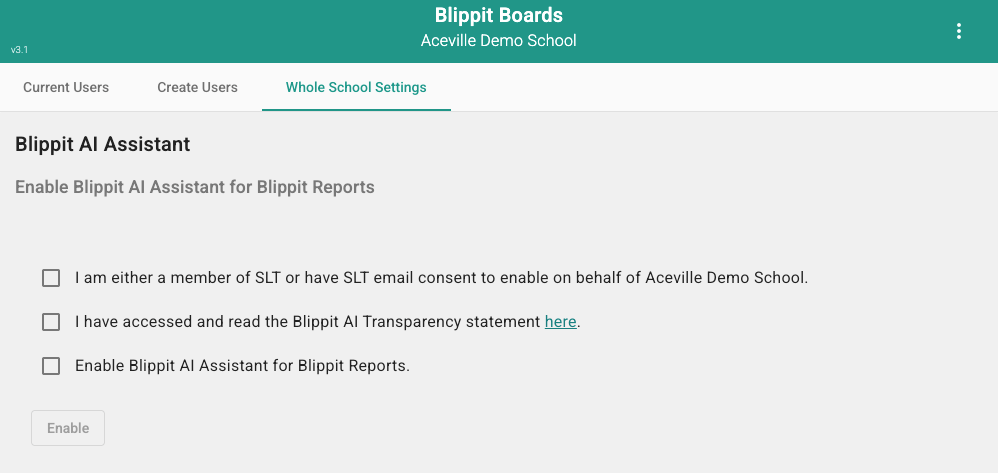
To use AI, an SLT representative must activate the AI option via the Whole School Settings tab in the Blippit User Management Dashboard. Once activated, teachers see the option to include an AI-generated Curriculum Snapshot when tapping the Report button.
The Blippit AI Assistant is enabled inside the Blippit User Management Dashboard by a school Admin. When it's enabled, teachers can get a Curriculum Snapshot in their reports at the point of tapping the PDF or Word report icons.
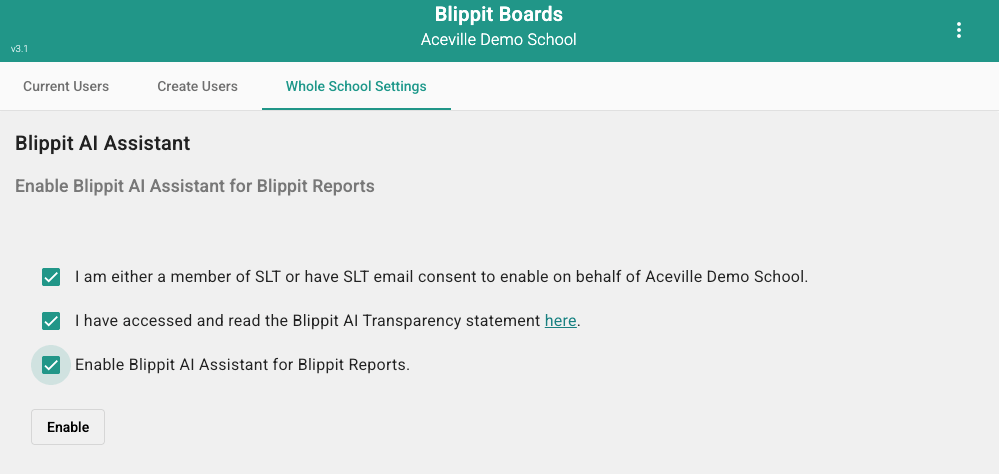
Once all three boxes are ticked, the Enable button becomes active. Tap it to confirm.
Step 1 - Whole School Settings in the dashboard
Step 2 - Tick all three options and click Enable
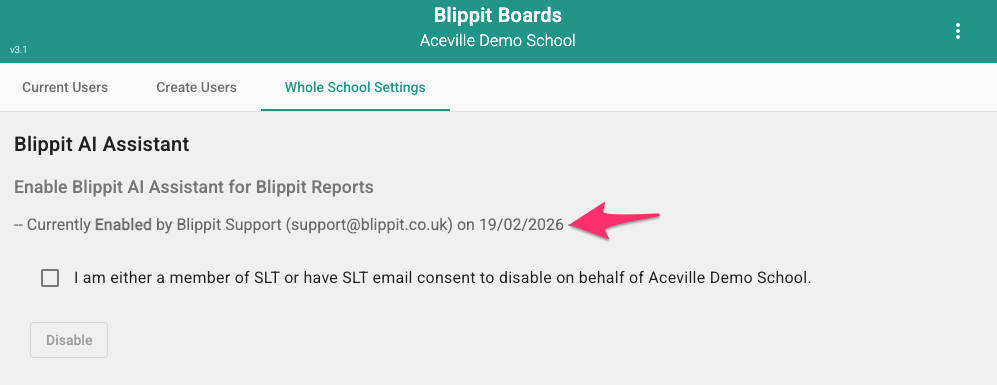
Confirming AI is enabled for your school
Once activated, the Whole School Settings page shows a confirmation with the name of the person who enabled it and the date it was activated. A single checkbox lets an SLT-authorised Admin disable AI instantly at any time.
Once AI is enabled for your school, any teacher can choose to include a Curriculum Snapshot when generating a PDF report.
Filter your boards as normal using tags, date range, or search.
Tap PDF / DOCX Report.
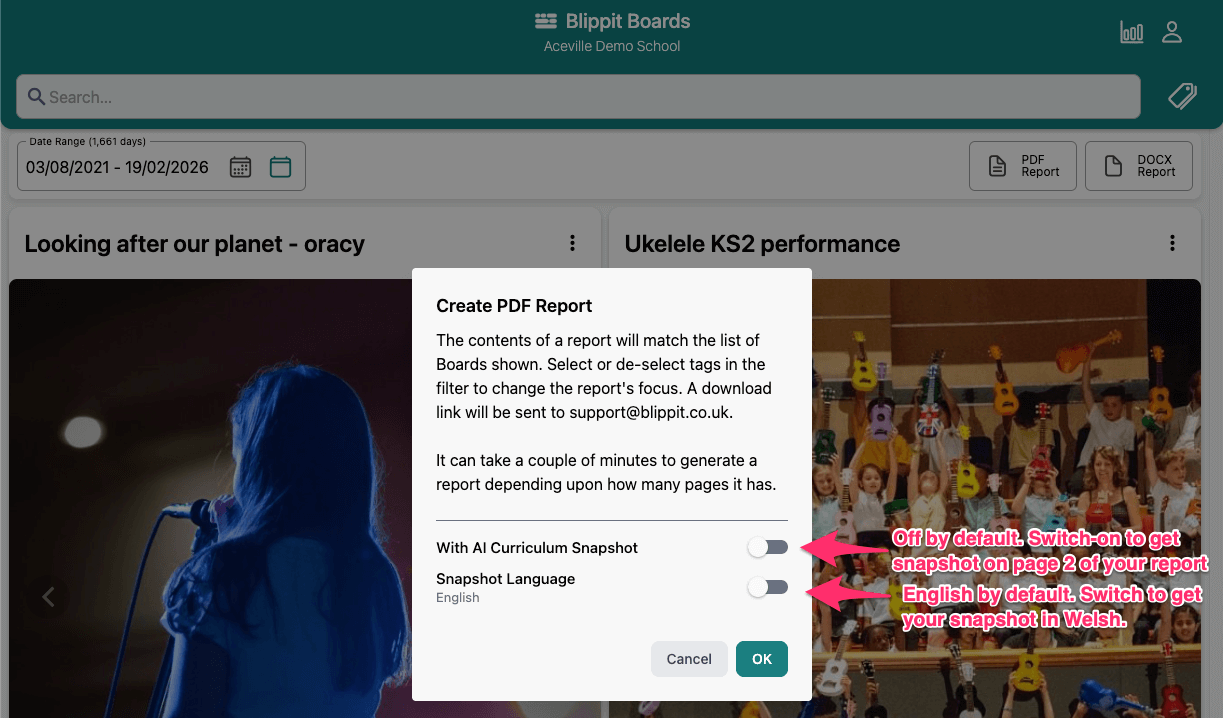
In the Create PDF Report dialog you will see two new options:
With AI Curriculum Snapshot — off by default. Switch this on to include an AI-generated summary as page 2 of your report.
Snapshot Language — set to English by default. Switch this on to generate the snapshot in Welsh instead.
Tap OK to generate your report. A download link will be emailed to you as usual.
Step 4 - Create PDF Report dialog with AI Curriculum Snapshot and Snapshot Language toggles
What the AI Curriculum Snapshot contains
The AI reads the board titles, descriptions, and tags that make up your filtered report and produces a short written summary covering:
the curriculum areas included
the range and nature of moments captured
any themes or patterns that emerge across the boards
It is designed to give you an immediate sense of your report's content before you work through the detailed evidence pages. Boards with minimal information will be flagged so you know where to add more.
Good to know
The Curriculum Snapshot is optional every time — teachers choose whether to include it for each report. Your last setting is remembered, so if you generated in Welsh last time, that will remain the setting until you change it.
It is off by default at school level and will never appear as an option unless an Admin enables it.
The snapshot is based entirely on the boards in your filtered view at the time you generate the report.
Better tagging and richer board descriptions lead to a more accurate and useful snapshot.
Reports that include a Curriculum Snapshot may take a little longer to generate than standard reports.
Transparency
Blippit takes AI use seriously. Before enabling this feature, Admins are required to read the Blippit AI Transparency Statement, which explains how the AI works, what data is used, and how it is handled. This statement is accessible directly from the Whole School Settings screen during activation. Blippit’s DPA was updated on 27 February 2026 to reflect processing when the AI option is enabled.