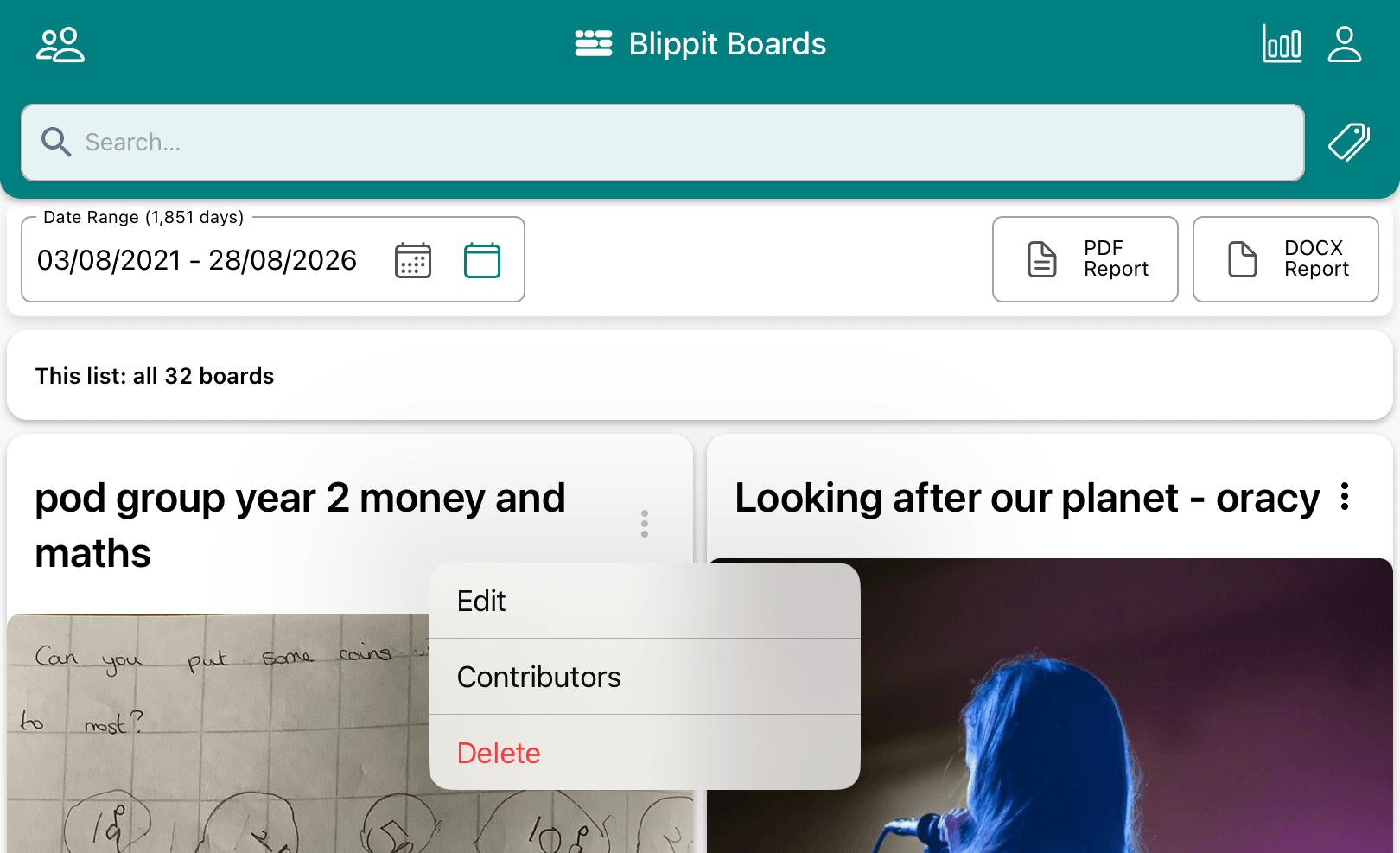
tap the three vertical dots next to the board title
select Edit
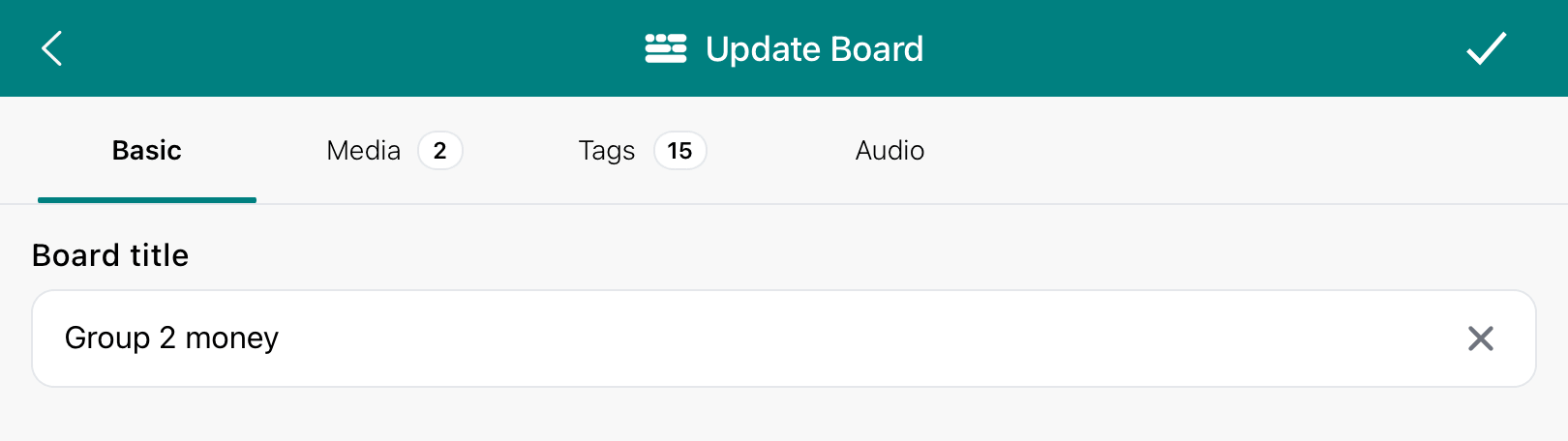
make any changes needed (title, description, tags, media, etc.)
tap the tick icon to save your changes
Tap the 3 vertical dots by the board title of your choice. Choose Edit to update the contents of the board, Contributors to give other non-admins access to add to it or 'Delete' to delete the whole board.
Tap in the title area and tap the tick to complete
UpEditing a board title
To change just the title:
enter Edit mode as above
tap the board title
update the wording
tap the tick icon to confirm
The change updates immediately for all users.
Deleting a board
Admins can delete boards they don't own when necessary. This is irreversible.
To delete a board completely:
tap the three dots beside the board title
select Delete
select Confirm
Important
if Delete is tapped by mistake, you will have the chance to cancel
once deletion is confirmed, the board cannot be recovered
Only delete boards when you are certain they are no longer required.
Good practice when editing others’ boards
Admins often find it helpful to:
only edit when it improves clarity or accuracy
add tags rather than remove them unless clearly wrong
avoid changing another teacher’s professional wording where possible
let colleagues know if significant edits have been made
remind colleagues that
This keeps trust and transparency at the centre of the process.