Add Cloud Links to Your Blippit Boards (OneDrive, Google Drive)
January 1, 2026
Blippit Boards: Major App Features
Links add context
Copy and paste a shareable web link into the 'Add some context' area of your board. This will make it easy for you or others to see file(s) you are highlighting as relevant that are stored in the cloud. These files could be on OneDrive, GoogleDrive or almost anywhere else.
Your files never leave their location and so your links will always
be the latest file version (docx, pdf etc)
be managed by the file's author
respect the viewer/editor/share settings applied by the file author.
How to add a link
In the app, browse to the board where you want to include a link you have already copied to your clipboard.
Tap the 3 dots next to the board title -> Edit -> Tap into the 'Add some context' area -> Tap/hold/paste the link -> The link will appear in full.
Check that there's a character space before and after the link then tap the 'tick' to save your board.
The link shows as 'Cloud-Linked File' once published. Edit your board to update or add in more links.
Adding a simple descriptor in front of a link will help you and others to know what the link points to. e.g. "Word file of the lesson plan"
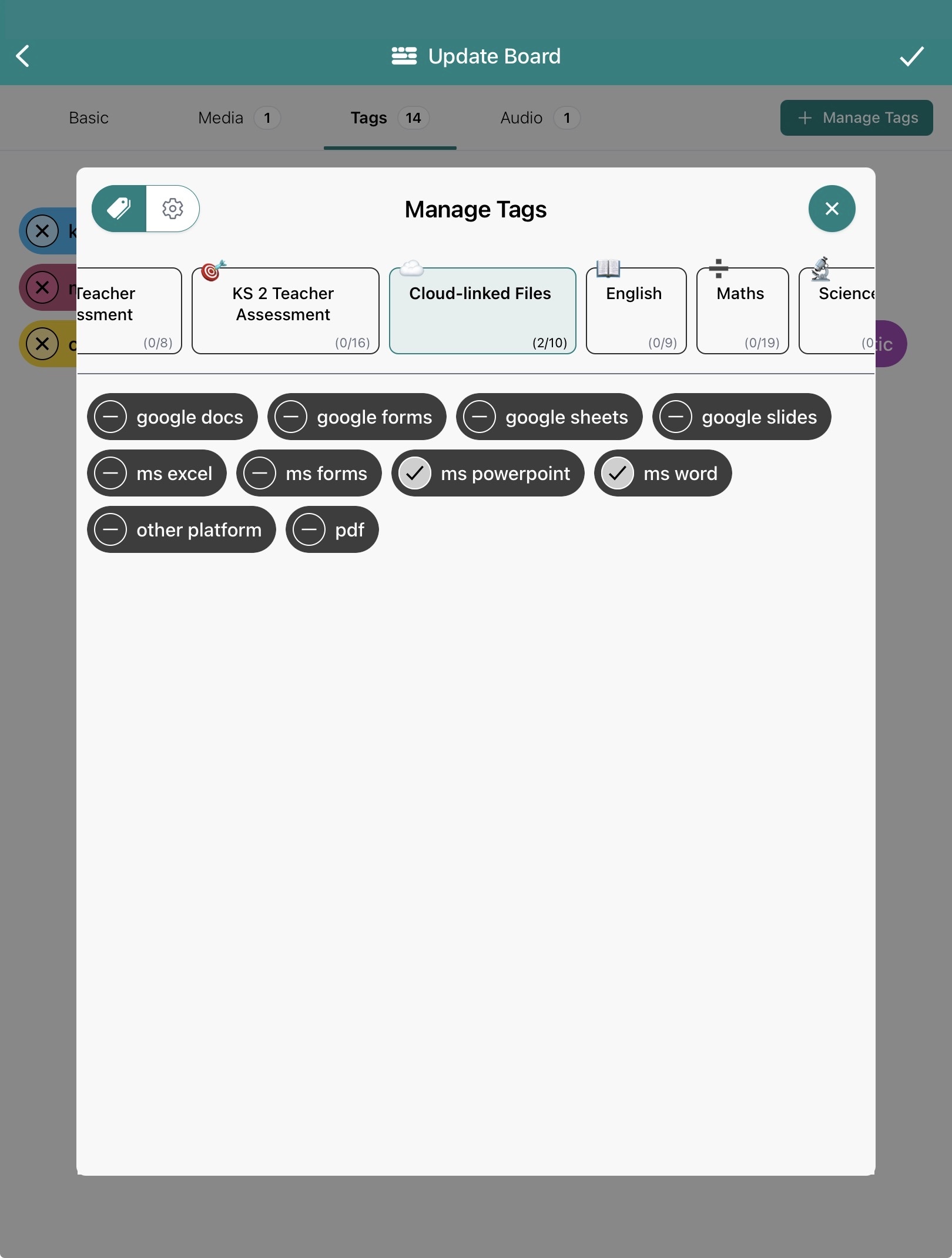
If you do tag a board using the 'Cloud-Linked Files' category then it makes filtering and finding resources much faster later. Just tap to apply the tag(s) (see below) that represent the type of file being linked to e.g. 'ms word', 'ms powerpoint' etc.
Check that your link works by looking at the published board in the app. Tap the link to see your file.
Reports
Any links added to a board are included in your report(s) in a shortened form.