
Up to three videos, each of up to one minute length or less, can be added to bring your moment to life on a board from your device photo library
Videos help bring a moment to life in Blippit Boards. You can add or remove videos on a board at any time.
The first time you do this, your device will ask permission for Blippit Boards to access your image library - choose Allow access to all photos so adding is quicker next time.
On the web version of the app you’ll only see a Choose button instead of a photo library picker.
To publish a board, you’ll need:
When you’re finished, tap the tick icon in the top-right corner to save.
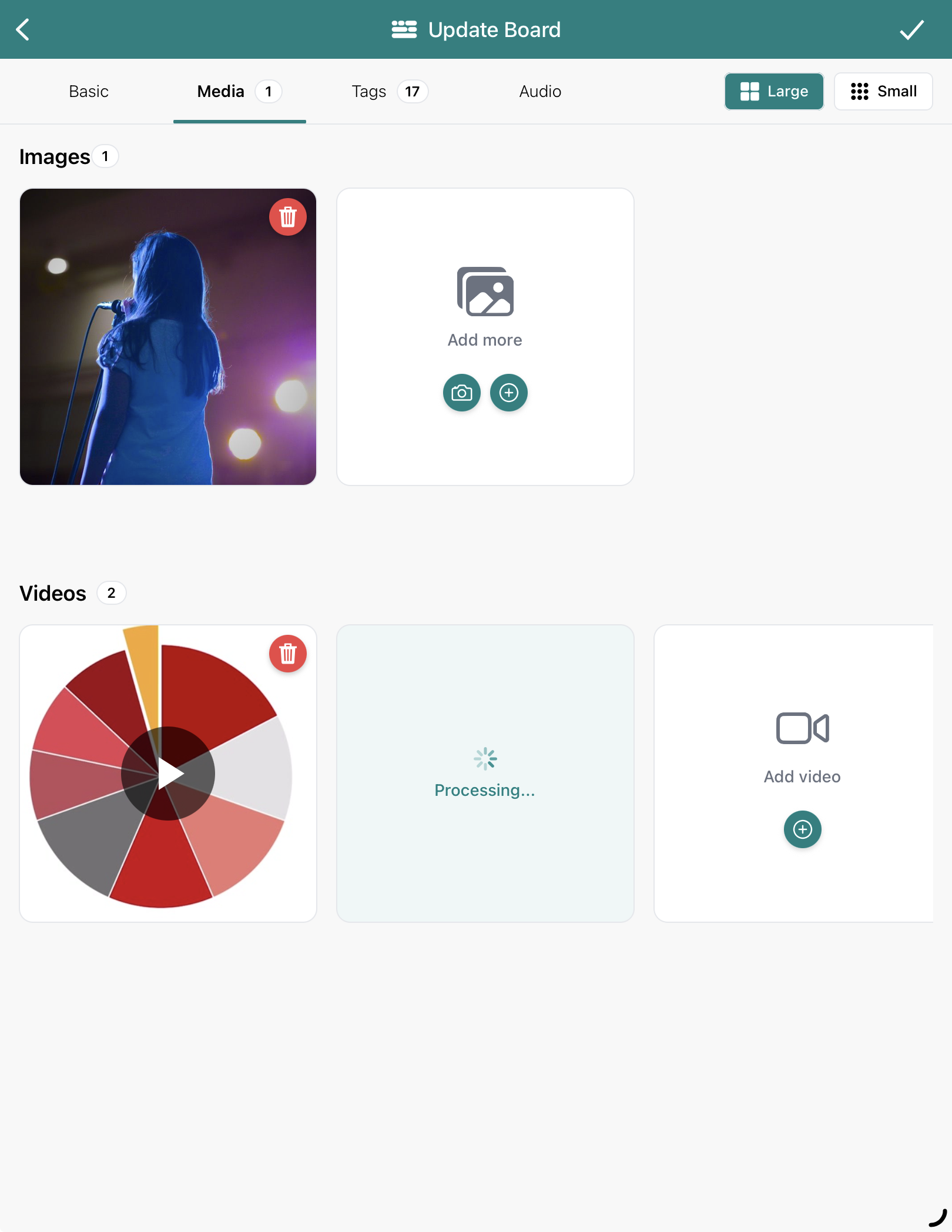
You can combine video with other media on the same board as shown below:
If you have longer videos, consider splitting them into three short one-minute sections.
You can also:
Reports, charts and in-app views are clearer and more powerful when:
A small number of strong videos almost always tell the story best.
Can't see your video right away?
Videos are large files that Blippit must process before they are ready to watch. Videos do not show on a board immediately while being processed. Instead, a 'processing' message is shown (see below) while the video is prepared. When fully processed, a thumbnail image from the video will appear.
Playing videos
Once added to a board, tap the play button on a video to play/pause on your device. Rotate your device if needed to make the video fill your screen. Share to a large screen if needed.
Adding videos to a board you made previously
Tap the three vertical dot menue by a board's title -> tap 'Edit' -> swipe to the 'Media' tab -> tap 'Add Video'. To delete a video from a board, tap the red trash can icon in the corner of the video thumbnail.