

Creating a Custom tag is useful for your own individual needs when you want to have a tag that doesn't appear in the core collection of ready-to-use tags provided in the app. It's a 'just for you' tag. Custom tags are not bespoke tag groups. Custom tags are different bespoke tag groups.
1. Create a new board and tap 'Add Tags'. Swipe all the way to the left until the purple 'Custom' tag category is selected.
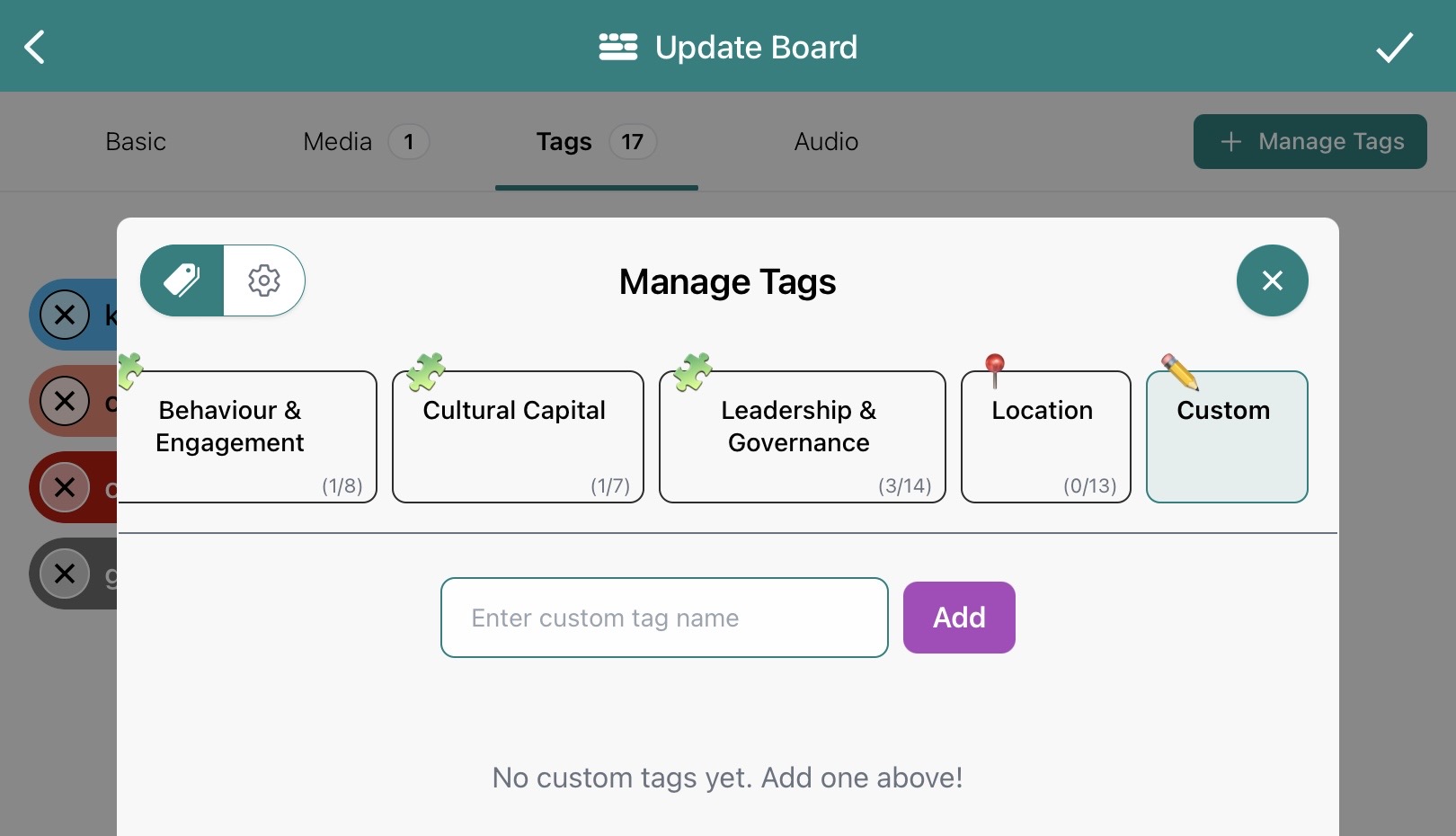
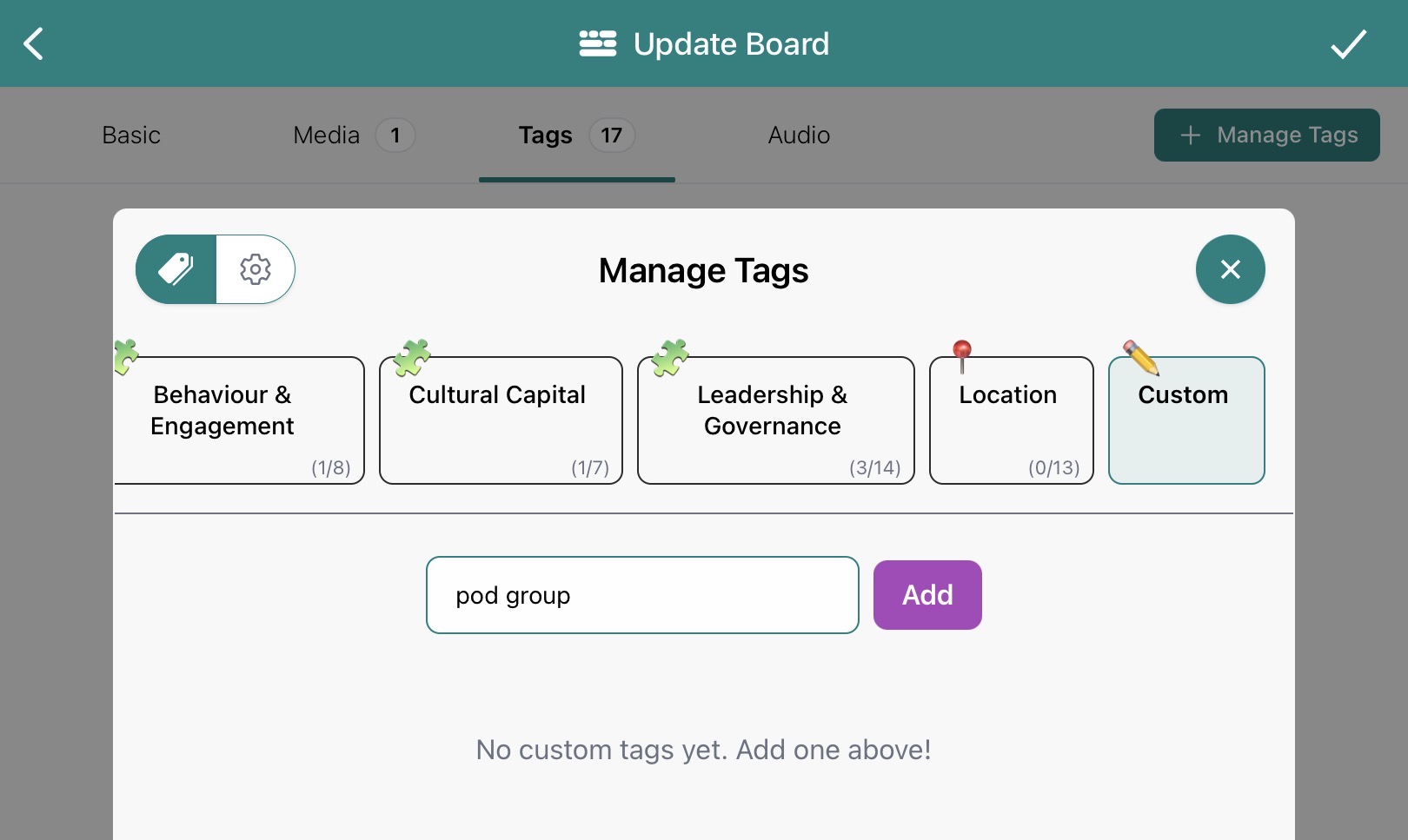
2. Enter a custom tag and click Add to create it.
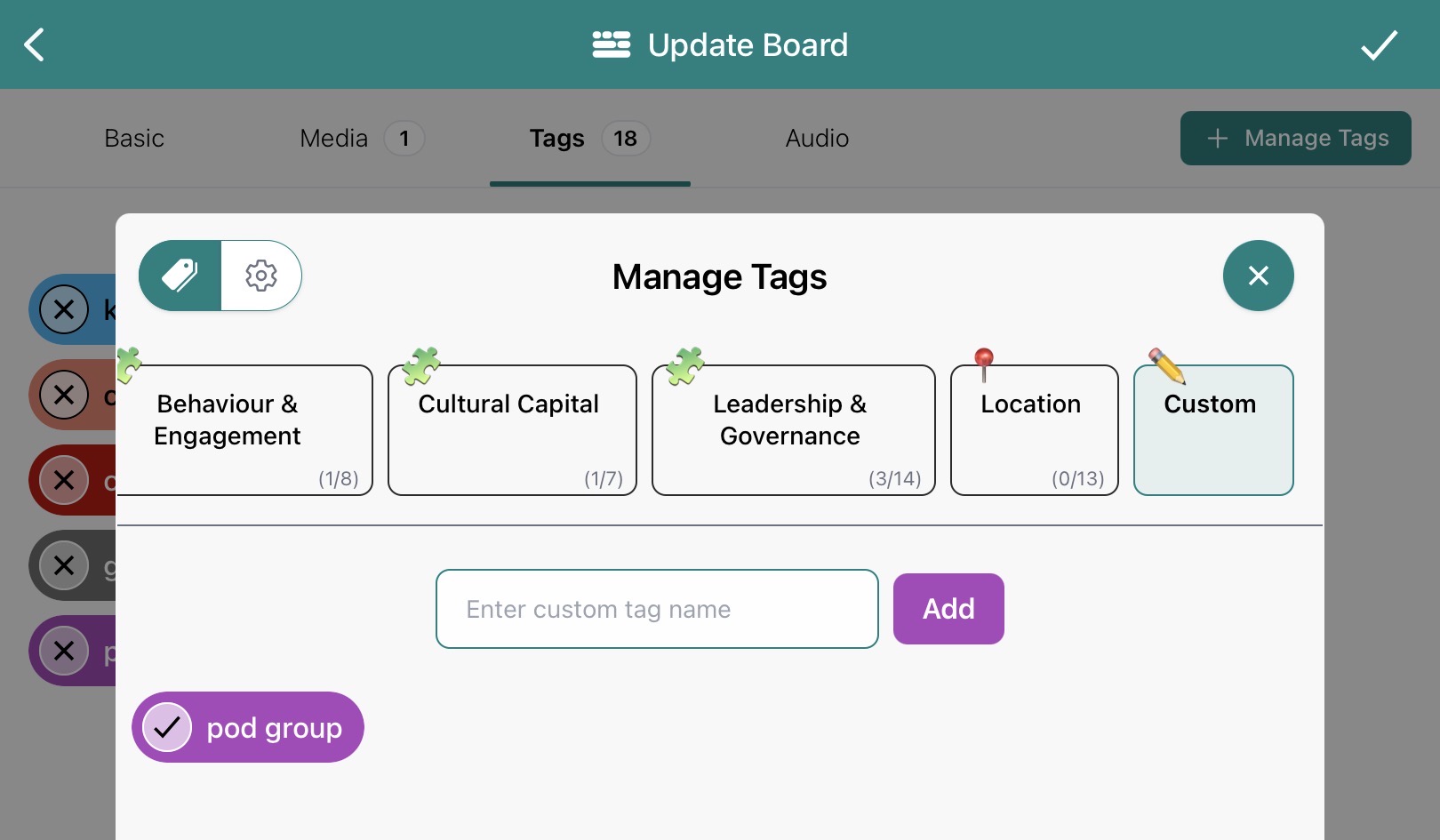
3. The tag is applied straight away to your Board.
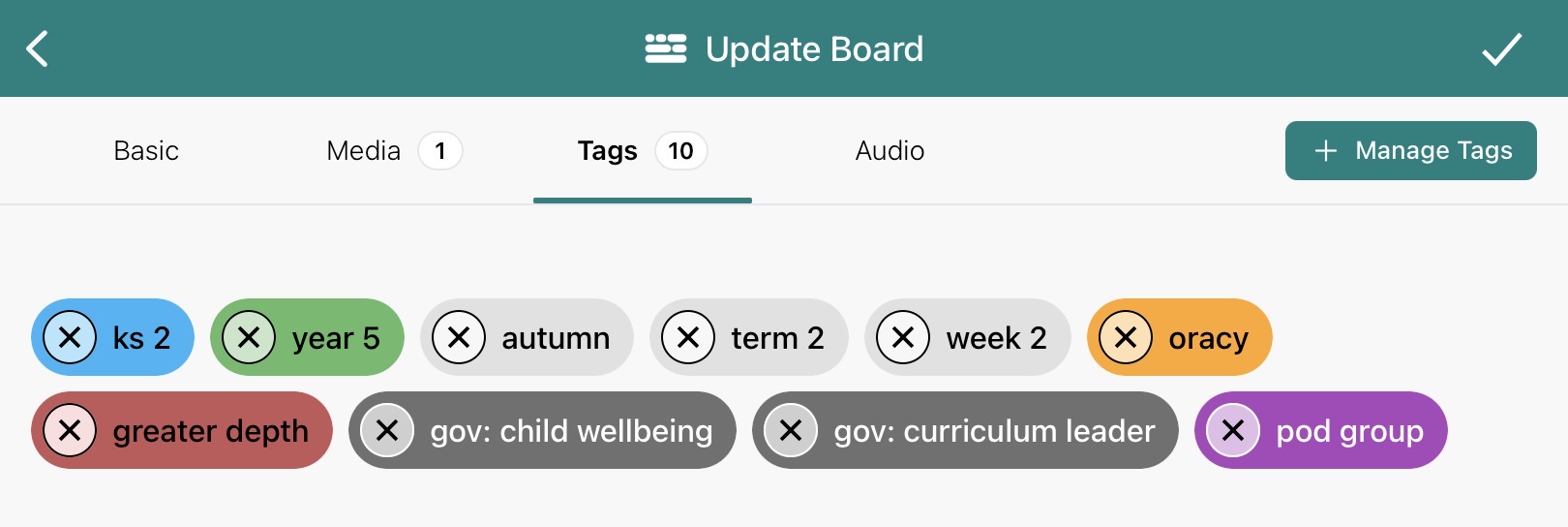
4. Have a quick check that everything you want to add is included now as part of this curriculum moment. Tap the 'tick' in the top right if you are happy to share. If you see a type error in your custom tag, just tap the 'x' to remove the it and then make another if needed.
Read more to see the difference between custom and bespoke tag categories in Blippit Boards.