
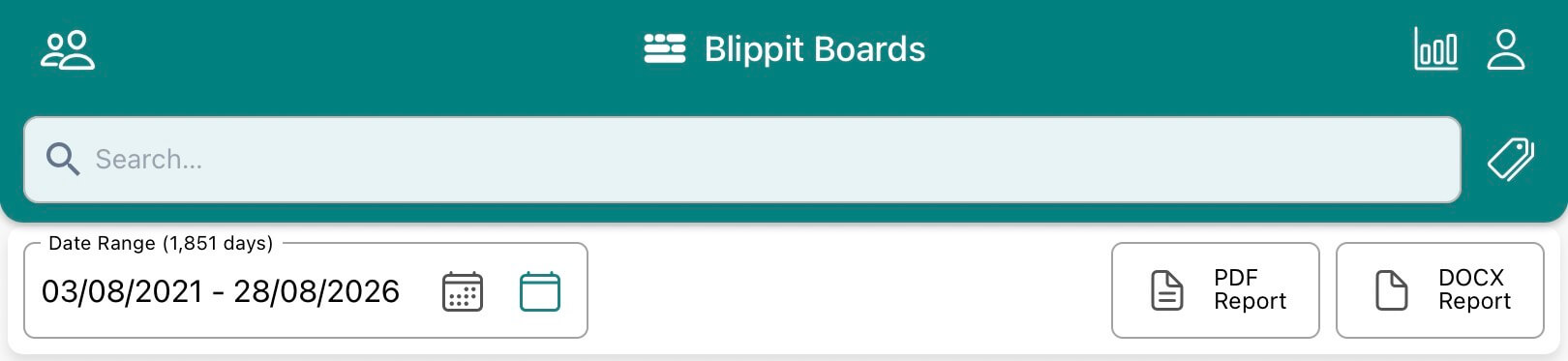
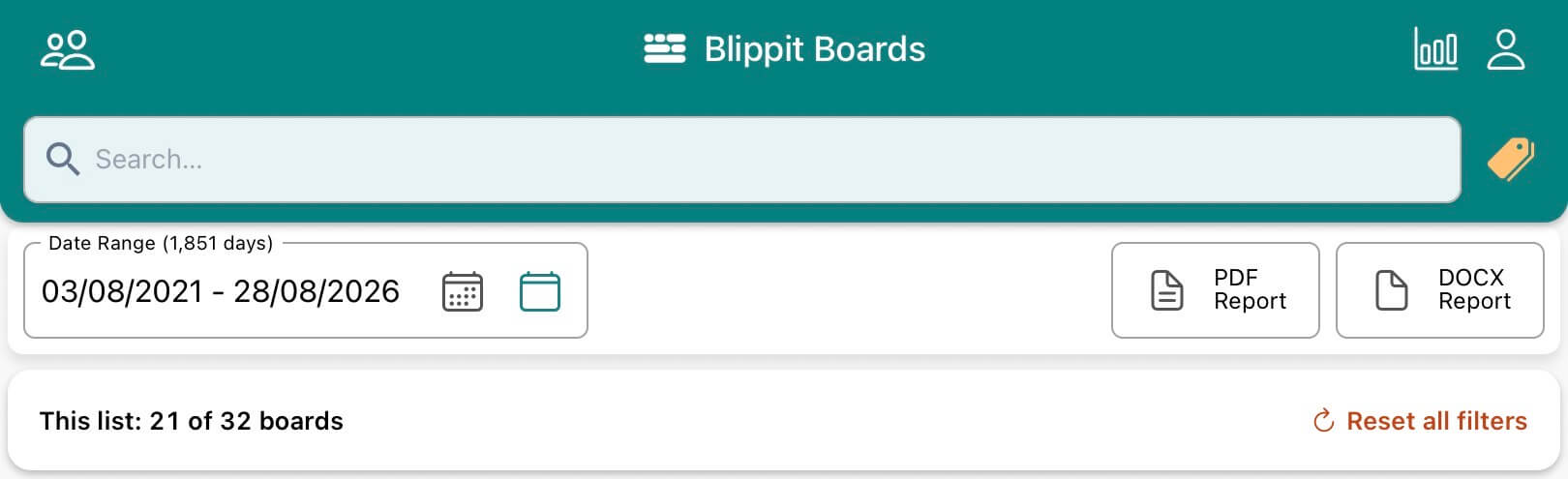
The tags icon is normally white, which means all Boards are being listed. When the tags icon is orange, at least one tag has been selected to filter the view. The people icon (top left) gives a people-centred view of all boards. It has the same white->orange behaviour as the tags icon.
To see all Boards, tap 'Reset all filters' or open the tag panel to deselect and reapply new tags.
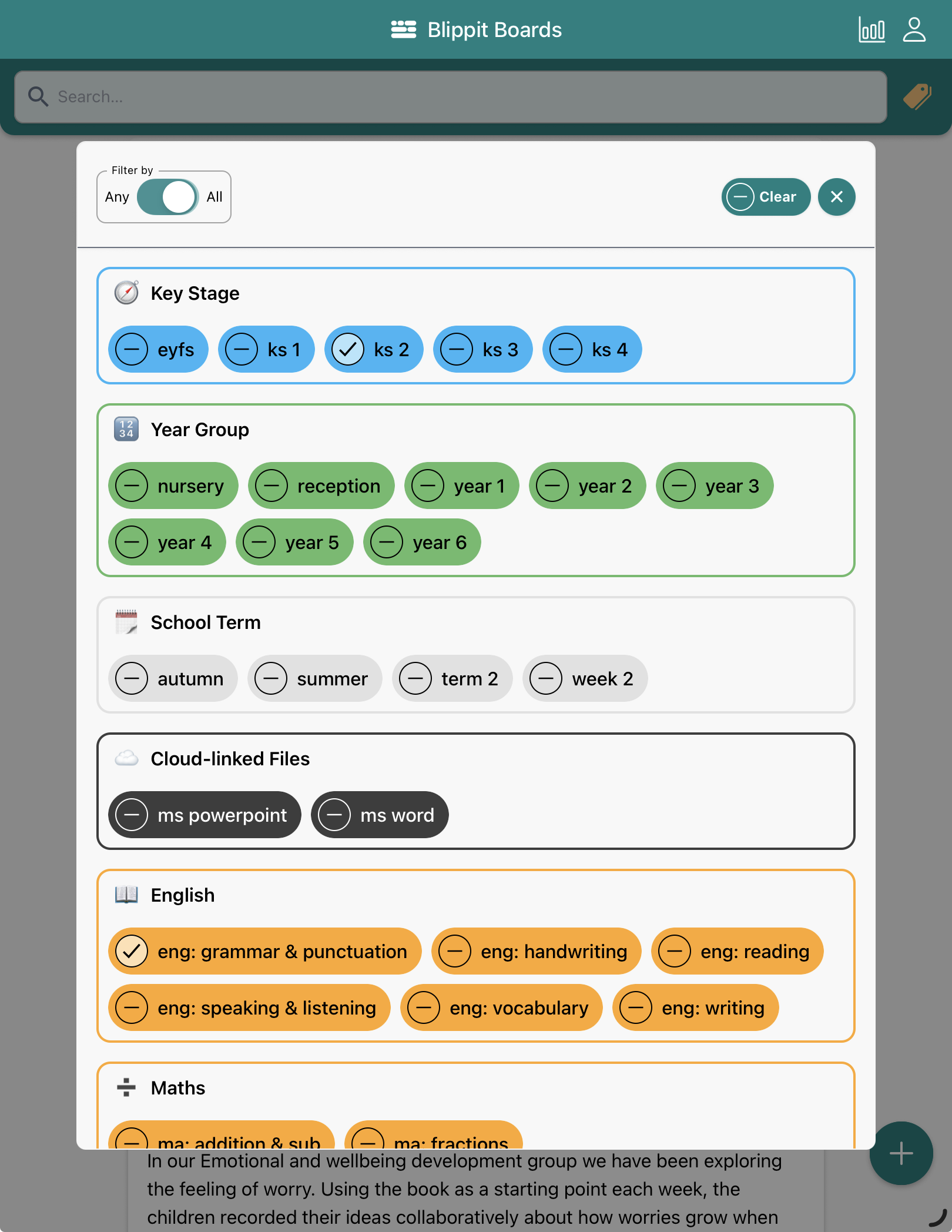
In this example, filtered boards must contain ALL tags selected. This is ideal for a report on, for example, 'ks 2' + 'eng: grammar & punctuation' as shown below, in a given time frame. You can select any tag combination to report like this.
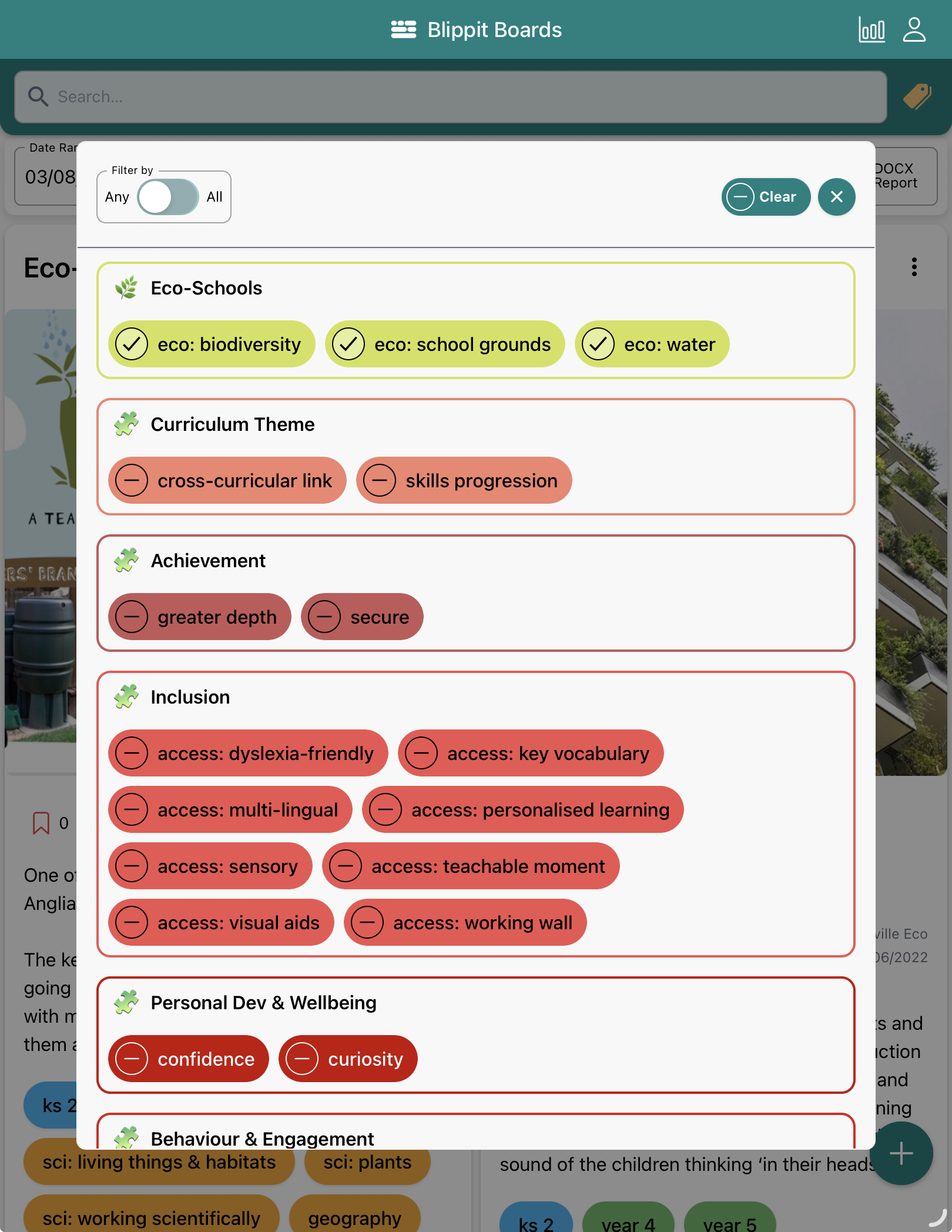
In this example, boards shown must contain AT LEAST ONE of the tags you selected. This is ideal if you want to report on, for example, any boards containing any 'Eco-Schools' tags as shown below, in a given time frame.
1. Tap the 'PDF Report' or DOCX Report' button. Select 'With AI Curriculum Snapshot' to include additional insight and review including:
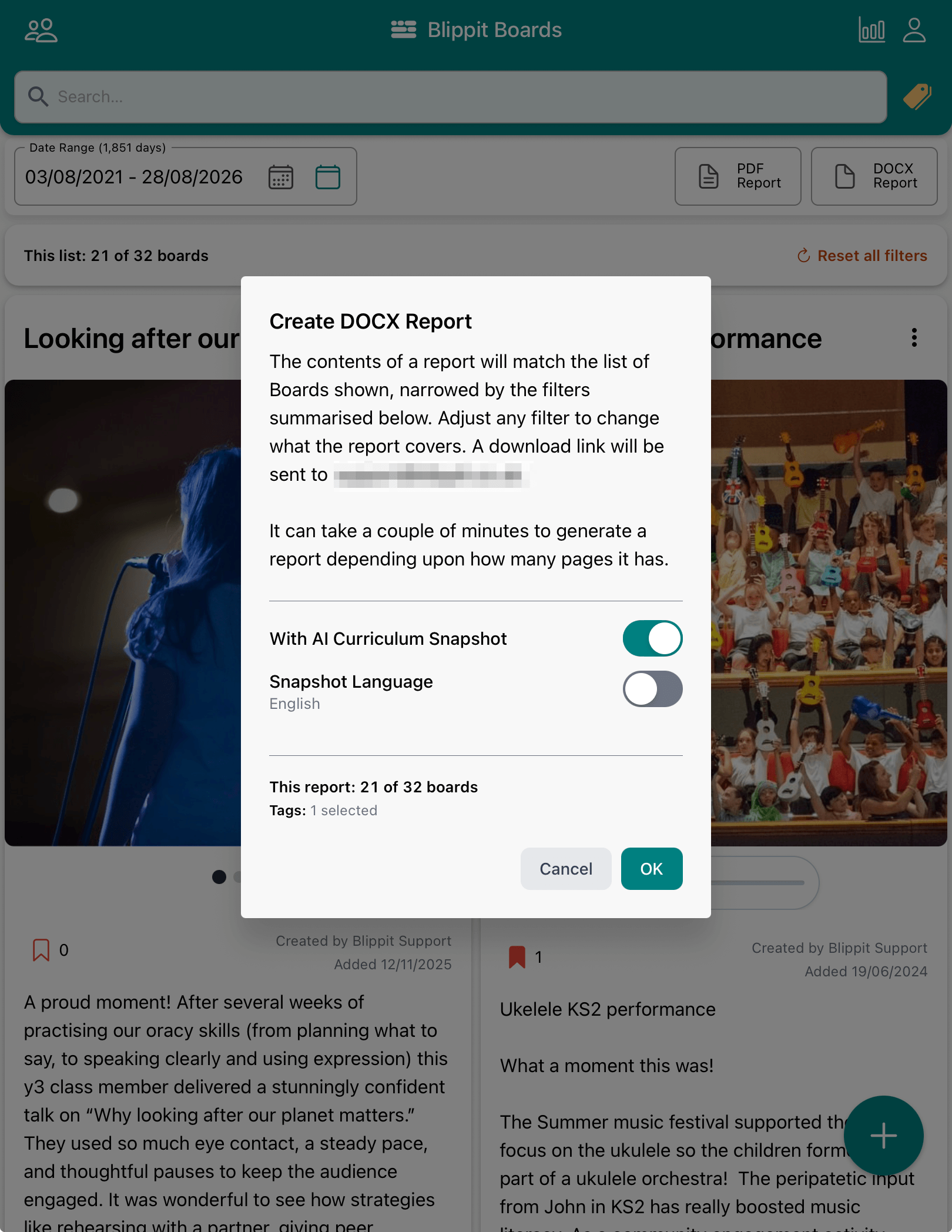
2. Cick OK to confirm
3. An email containing a download link will be delivered within the next minute or two depending upon how large the report is. If you want to add comments, areas for discussion and so on, get a DOCX report to edit in Word. Otherwise, report as a PDF.