
There are different ways to quickly find subject specific insights for your monitoring based upon real moments. In each case, at the end of a search, you will see a filtered timeline of boards where you can get a DOCX or PDF Report to take away.
1. Search using curriculum tags
In the app, tap the tag icon by the search bar to see all the tags used by teachers. Search using a single or multiple tag combination. Switch between 'any' and 'all' to change what you can see.
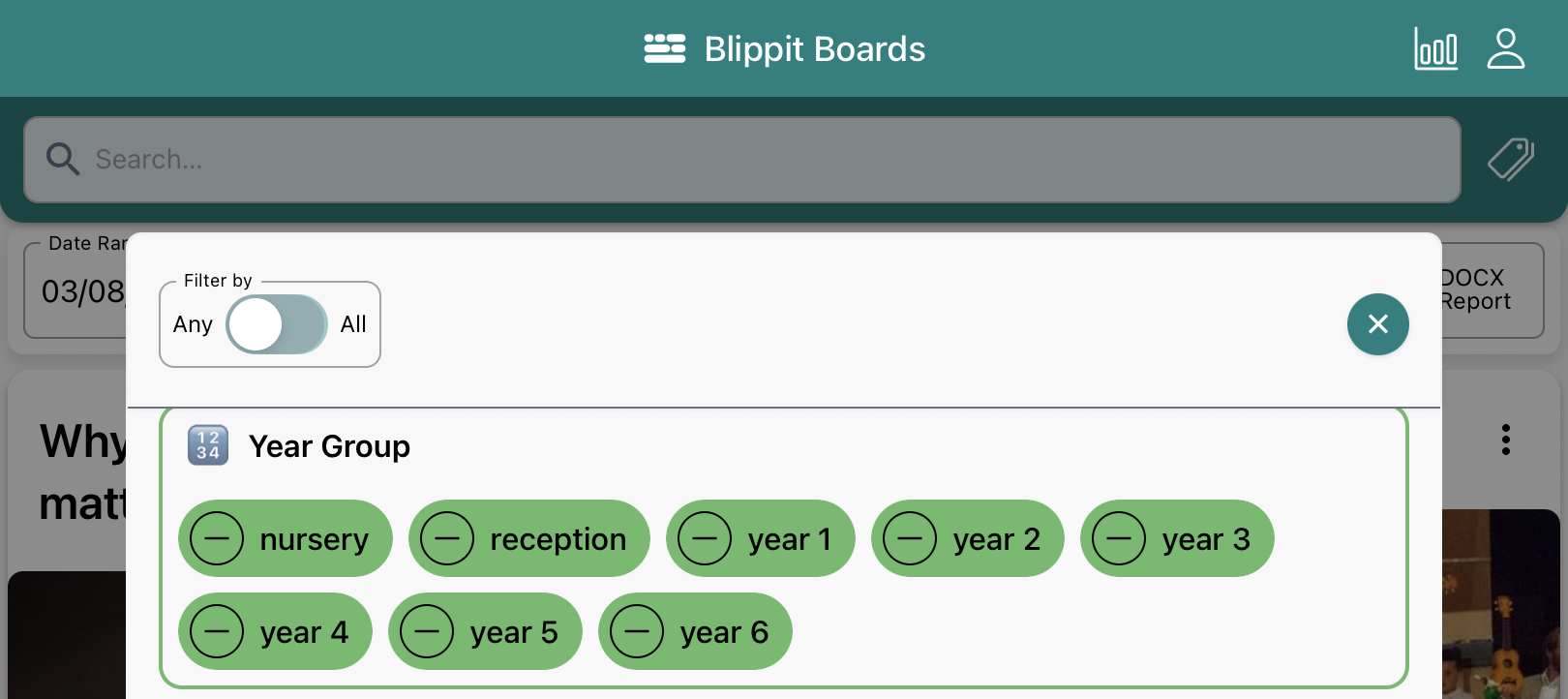
• When 'Any' is selected, as shown below, you see boards that include 'any' of the tags you select. This is useful for wide searches that you might want to report on.
e.g 'any' boards containing moments tagged with 'science'; 'any' boards containing moments tagged with any of the 'Eco-science' tags when they are alll selected.
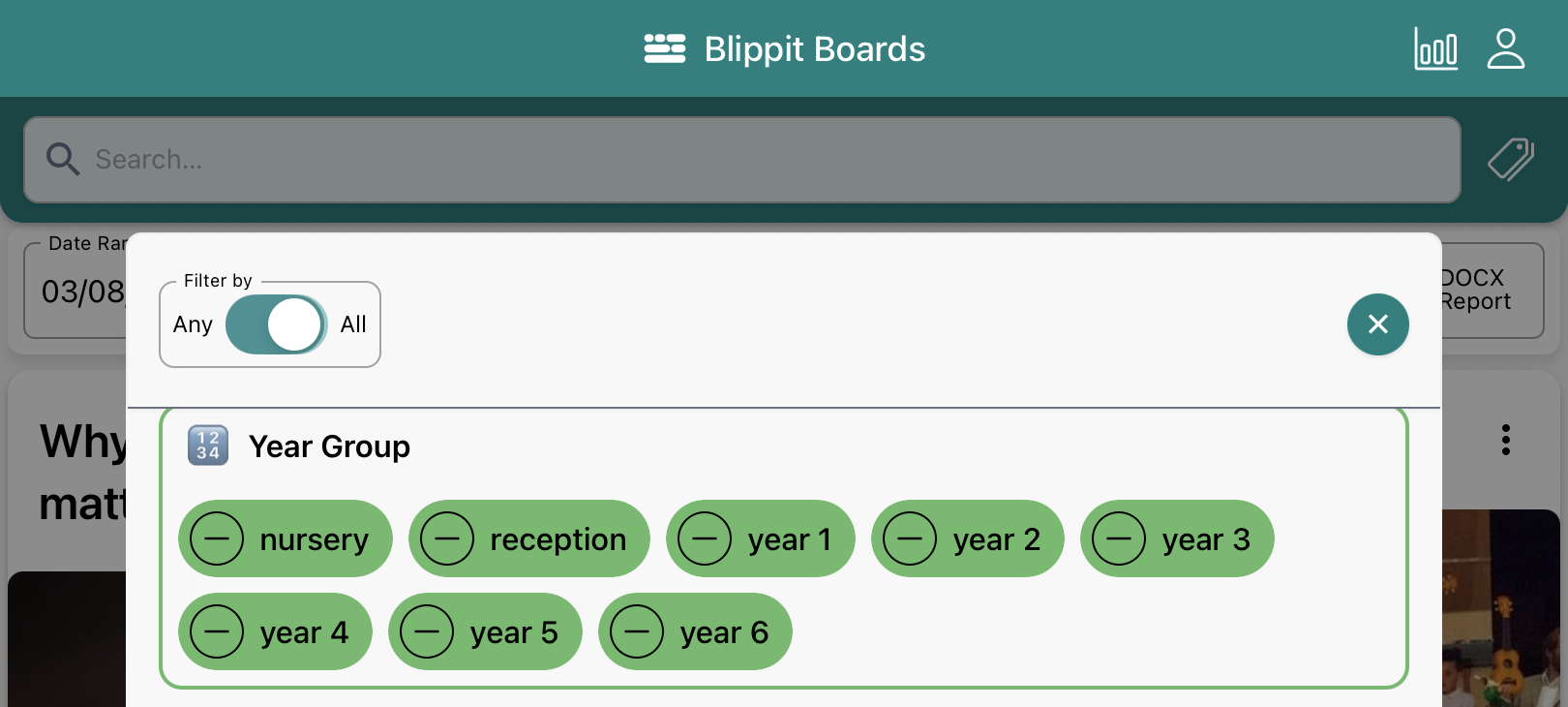
• When 'All' is selected, as shown below, you see only boards that include 'all' of the tags you select. This is useful for much more targeted discovery of moments added.
e.g. 'all' boards must be moments tagged with 'ks1' and 'ma: addition & sub'; or, 'all' boards must be moments tagged with 'year 5' + 'year 6' + 'eng: writing'.
2. Simple text search
In the app, enter keywords from a board title to search for boards that contain those keywords in the title. Search works on part-words too e.g. you can type in 'wor', as shown below, and an instant search will show all entries e.g. 'workshop' 'worship' 'worries' and so on.

3. Start with your charts
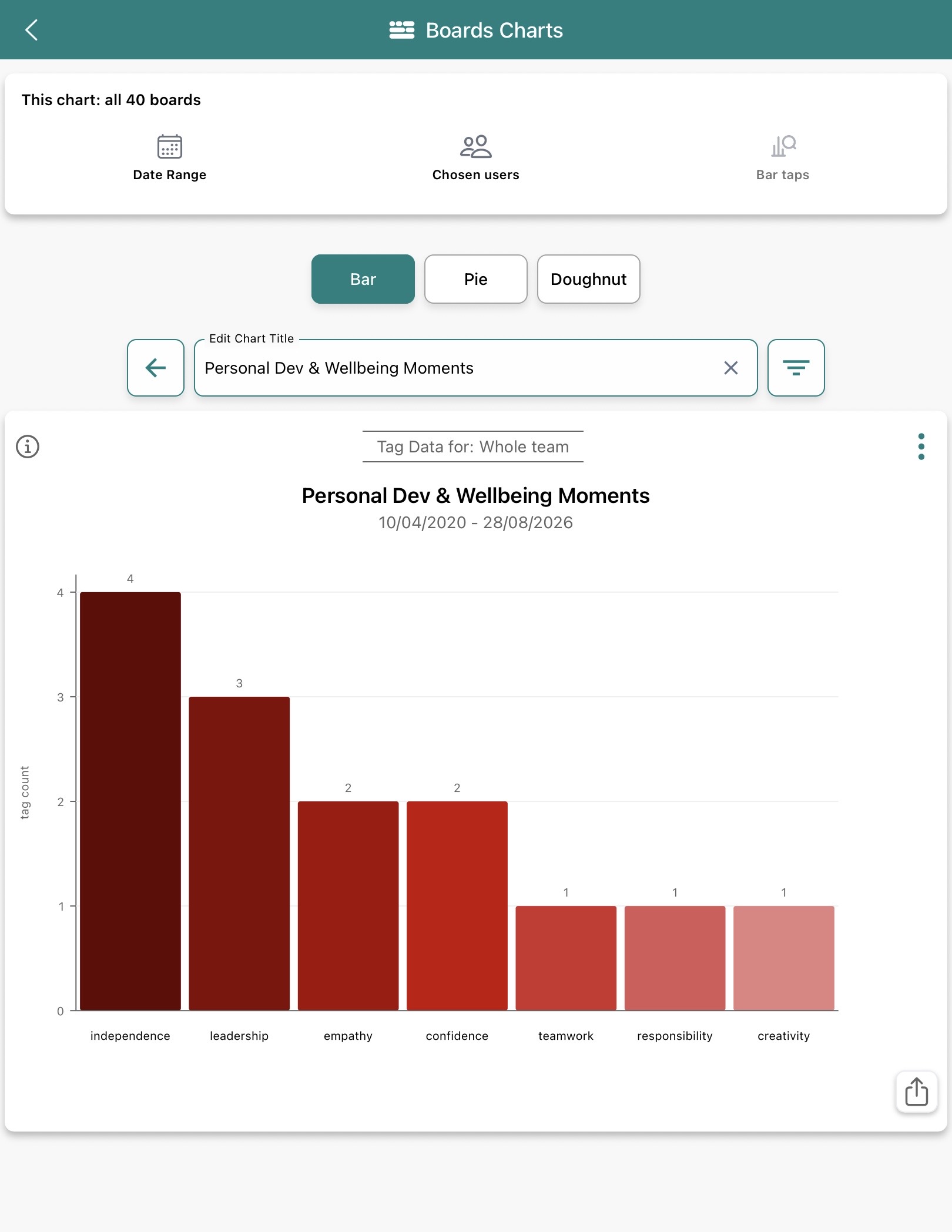
In the app, tap the chart icon in the top tight corner. Look for the curriculum area you need. Tap the block or segment you want to explore. If the chart is a barchart, and you have many boards tagged, then the chart can be swiped to the left if required to see the whole chart.
• e.g. Tap 'subjects' -> Tap 'oracy' -> see all moments shared on boards tagged with 'oracy'. Tap the PDF or DOCX button to get it as a document report.
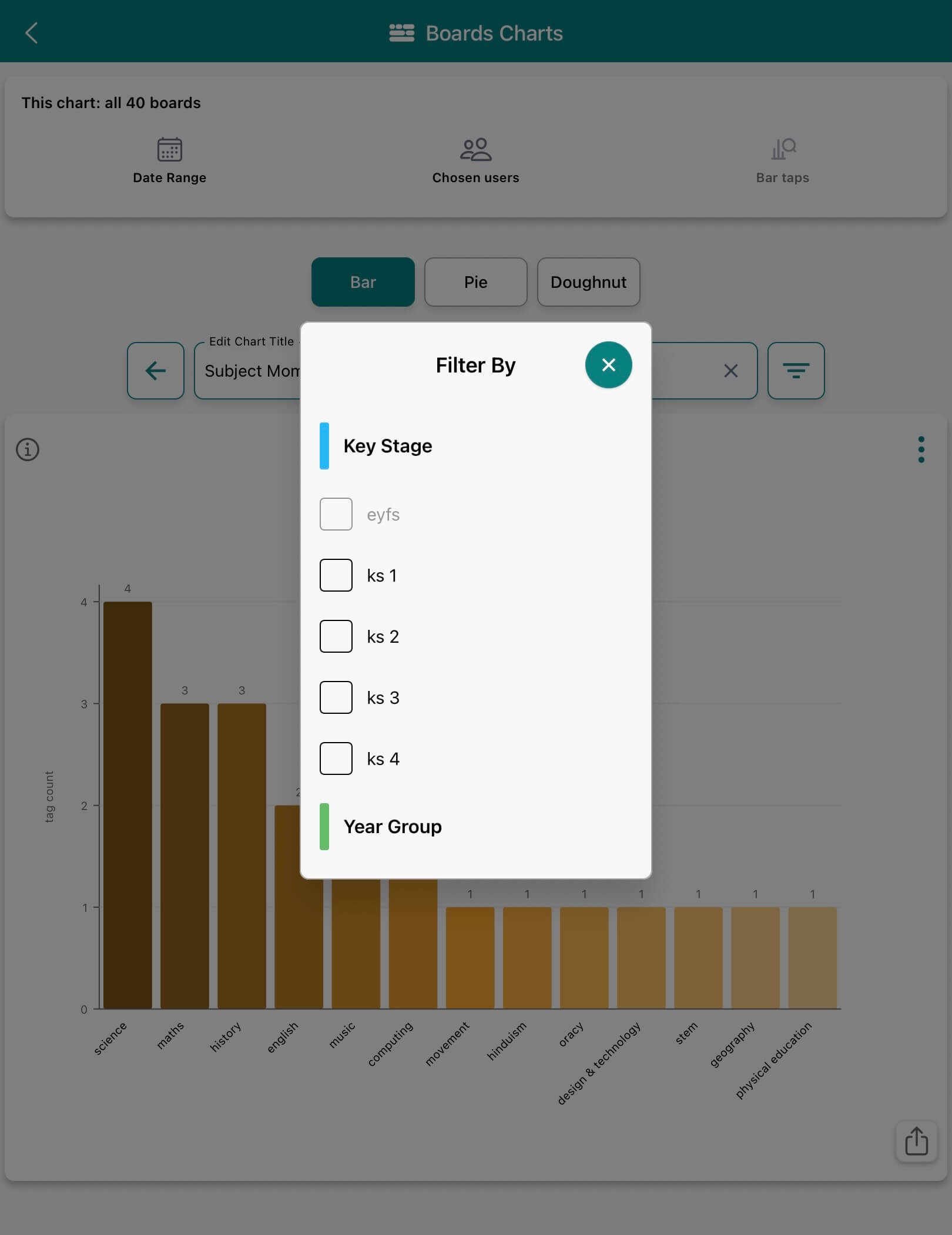
• e.g. To filter what you see down further -> Tap 'subjects' -> Tap 'oracy' -> Tap the filter icon to select and apply stage or age related filters -> Tap 'x' when done -> Tap a block or segment on the chart -> See moments shared on boards tagged with 'oracy' that are also filtered by stage or age fillter -> Tap the PDF or DOCX button to get a document report of what you see.
4. Using the date range selector
Filter by a specfic date range to narrow your results down. The date range filter is shown at the top of a chart screen as shown below. Remember to clear the data range when done to ensure you see all boards created.