Some moments matter, even when they are not for sharing.
Reflect is a private space for teachers to pause and reflect in their own words.
Only you can see what you write. Your school cannot see it.
Private to you
School cannot see it
AI is optional
Blippit Reflect is a private reflection feature.
It is not for appraisal, monitoring, or wellbeing tracking.
Teachers’ reflections are not visible to the school.
No school visibility
No monitoring use
Trust-based feature
What does Reflect give you?
When enabled, via 'Whole School Settings' in the dashboard, teachers can choose to see what AI makes of their reflection. A short response is generated - it picks up on what the teacher has noticed, offers a different angle on why it might matter, and may include a question to extend the thinking rather than prompt action. Unlike a chat interface, it generates a single, self-contained response - there's no back-and-forth.
What is it?
The response reframes what the teacher has shared - not as a summary or evaluation, but as a slightly different way of seeing the same moment. It does not advise, instruct, or judge. Instead it reframes the moment and offers something to take forward that can offer a positive well-being side effect.
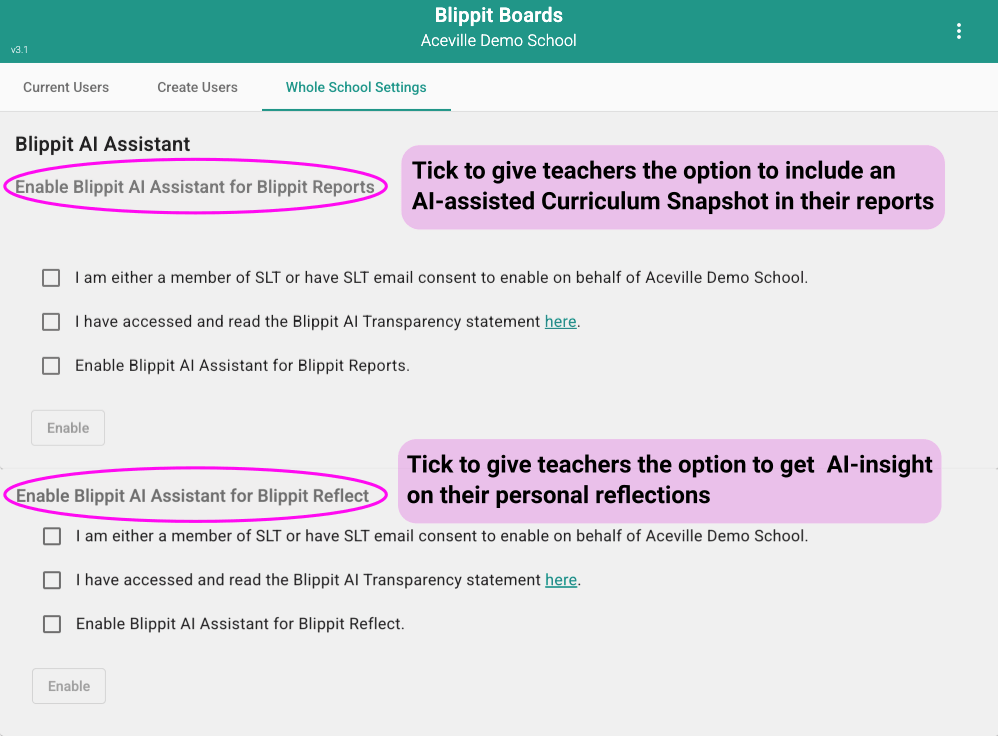
How to enable the AI Assistant for Blippit Reflect (Admin only)
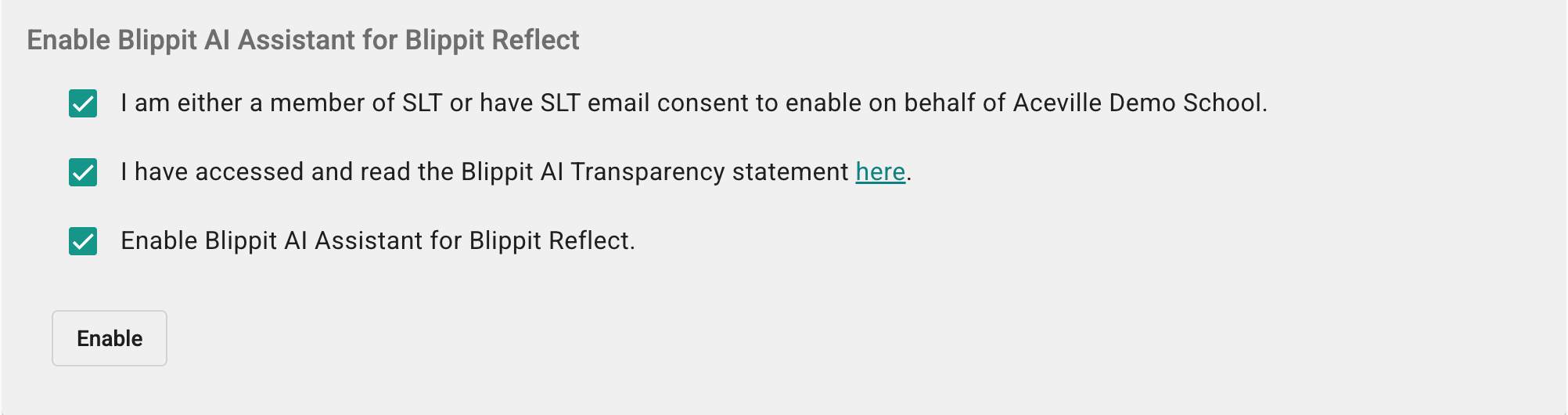
Once all three boxes are ticked, the Enable button becomes active. Tap it to confirm.
Step 1 - See Whole School Settings in the dashboard
Whole School Settings in the Dashboard
Step 2 - Tick all three options and click Enable
Whole School Settings in the Dashboard
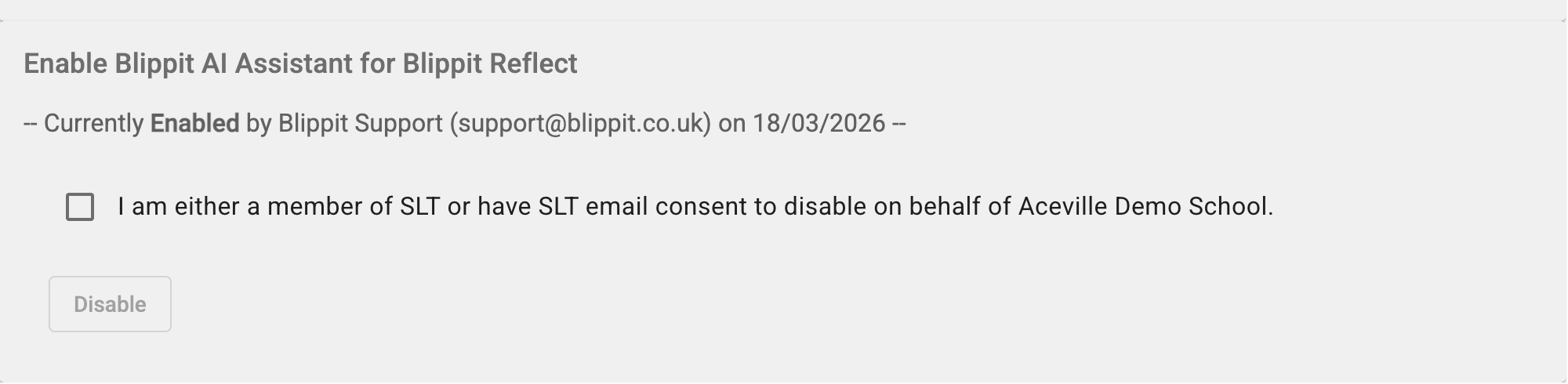
Confirming AI is enabled for your school
Once activated, the Whole School Settings page shows a confirmation with the name of the person who enabled AI and the date it was activated. A single checkbox lets an SLT-authorised Admin disable AI instantly at any time.
Reflections are private, never stored, and can only be seen by the teacher. Enabling AI does not give the school access to any teacher's reflections, even anonymously.
Tap the big + button and select Reflect (speech icon).
Read the intro screen - it explains what Reflect can and cannot do.
Tap Start Reflecting, then type or dictate your reflection.
Once you have written more than 20 words, the AI button activates. Tap it to see what AI makes of your reflection.
You can tap Copy at any point to copy your reflection or the AI response to your clipboard and share it however you choose.
Tap That's Enough to reset Reflect. Nothing is stored.
Good to know
The AI response is optional every time - teachers choose whether to use it for each reflection.
It is off by default at school level and will never appear unless an Admin switches it on.
Transparency
Blippit takes AI use seriously. Before enabling this feature, Admins are required to read the Blippit AI Transparency Statement, which explains how the AI works, what data is used, and how it is handled. This statement is accessible directly from the Whole School Settings screen during activation. Blippit's DPA was updated on 27 February 2026 to reflect processing when the AI option is enabled.
×
i
Important
To use AI, an SLT representative must activate the AI option via the Whole School Settings tab in the Blippit User Management Dashboard. Once activated, teachers see the 'See what AI makes of this' button after entering 20 or more words to their reflection.