Photos help bring a moment to life in Blippit Boards. You can add, remove, and reorder photos on a board at any time.
You can:
add photos from your device photo library, or
use your camera in the app to capture a moment in real time
You can add up to 25 images to one board. However, the most effective boards use well-selected photos, not large batches of similar images.
How to add photos to a board
Tap the + New board icon
Add your basic details
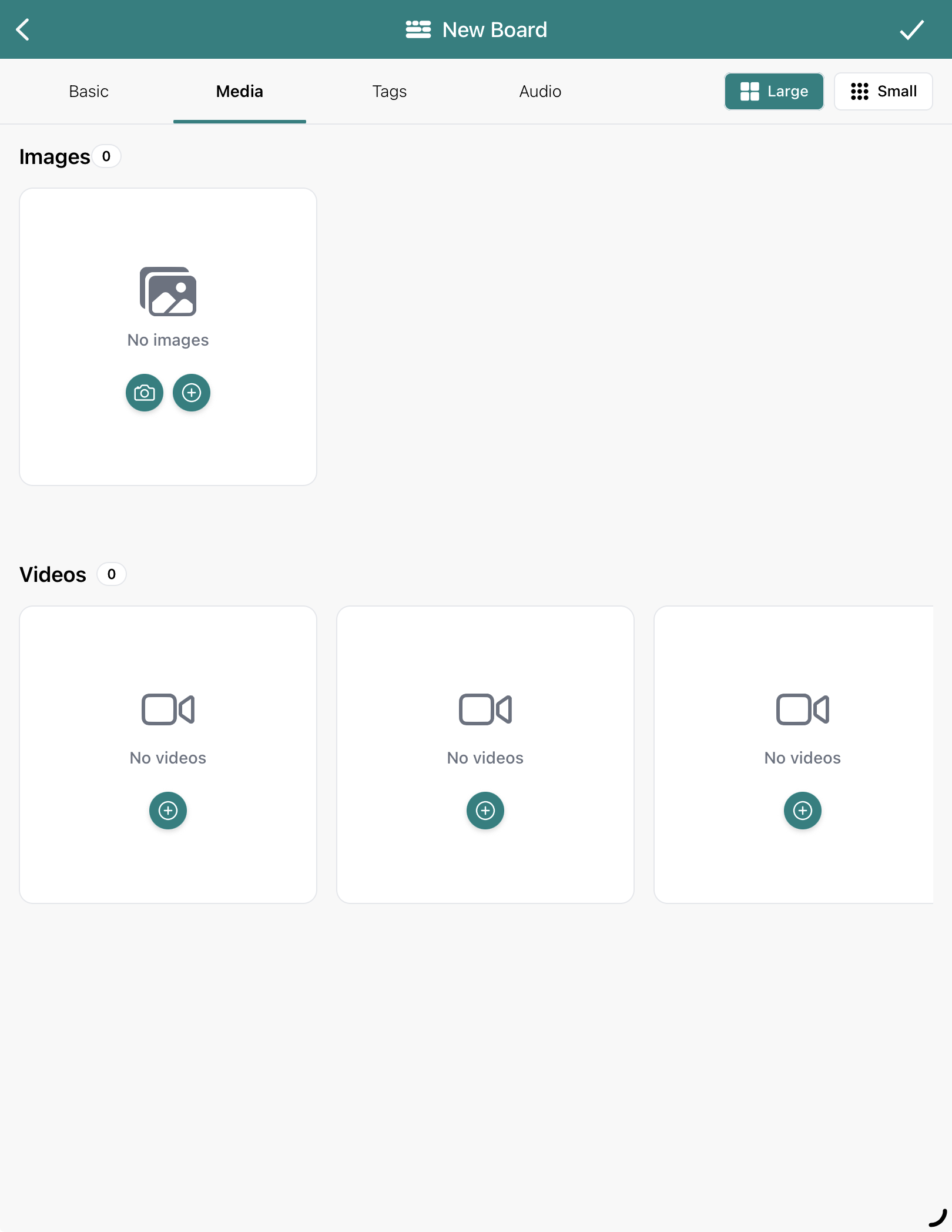
Swipe to the Media tab
Choose:
Camera to take a new photo, or
Library to select existing photos
Select up to 25 images at a time
Confirm and return to the board
The first time you do this, your device will ask permission for Blippit Boards to access photos - choose Allow access to all photos so adding is quick next time.
On the web version of the app you’ll see a Choose button instead of a photo library picker.
Minimum requirements to publish a board
To publish a board, you’ll need:
a title
at least one photo or media item
a short description
a minimum of three tags
When you’re finished, tap the tick icon in the top-right corner to save.
Top tips for getting the most helpful insights and moments
You can get some really helpful AI Curriculum Snapshots when you run a report, but only if the moments captured are sufficiently described.
include examples that show process as well as outcome
add a description so the moment makes sense to others
add tags from curriculum groups, not just age and stage
think about privacy when photographing displays or pupils
remove duplicate or blurry images - streamlined boards are easier to use
Using photos alongside video and other media
You can combine photos with other media on the same board:
up to 3 videos (1 minute each)
short audio clips
photos of work, environments, or displays
If you have longer videos, consider splitting them into three short one-minute sections.
You can also:
save PowerPoint slides as images and upload key slides
add links in the description to documents, websites or resources for colleagues
Less is more for your AI Curricululm Snapshots
Reports and in-app views are clearer and more powerful when: